Jupyter Architecture
A local notebook session usually involves three roles rather than a single “notebook process”:
- Client: the browser or editor interface where cells are edited and outputs are displayed.
- Server: manages files, sessions, authentication, HTTP/WebSocket connections, and kernel lifecycle.
- Kernel: a language-specific process that executes code and keeps runtime state.
The roles can run on one machine or across a remote connection. Other frontends can also speak the Jupyter messaging protocol without using the classic Notebook UI.
What the notebook file contains
An .ipynb file is JSON containing:
- Markdown and code cells;
- cell and notebook metadata;
- saved outputs such as text, images, and rich display data;
- kernel and language hints.
It does not contain the live Python or R process, installed packages, external datasets, environment variables, or all the hidden state that influenced execution. A saved notebook may therefore display correctly on the original machine yet fail when rerun elsewhere: the environment's state does not travel with the file.
Client, server, and kernel flow
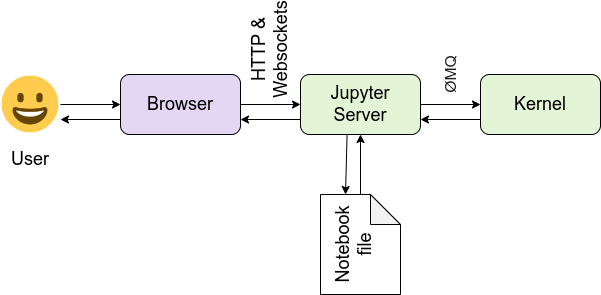
When a session needs a kernel, the server starts one or connects to an existing one and keeps its ZeroMQ connection details.
- The browser client normally communicates with the server over HTTP and WebSocket.
- The server acts as a bridge, forwarding messages to the kernel's Jupyter channels.
- The kernel retains variables between cells until it is restarted or shut down. Its process and address space hold this state; this language kernel is distinct from the operating-system kernel.
Opening a notebook often starts or connects to its selected kernel, but exact behavior depends on the frontend and session state. Viewing a static notebook does not require a live kernel.
 Open full-size image
Follow the two routes out of the server: one sends code to the kernel; the other reads and writes the notebook file. Saving a notebook therefore saves a document, not the live kernel process. The browser connects through HTTP and WebSockets, while the server communicates with the kernel through ZeroMQ.
Conversion with nbconvert
nbconvert follows these steps:
- Read the notebook document.
- Apply optional preprocessors.
- Pass the result to an exporter, such as HTML or Markdown.
- For some formats, apply templates or postprocessors.
By default, conversion does not execute code; ordinary export can reuse the outputs already saved in the file. The notebook runs again only when execution is explicitly configured.
jupyter nbconvert --to html analysis.ipynb
Practical consequence
A notebook's execution count and visible output are not enough to establish reproducibility.
To make the execution reproducible:
- Restart the kernel.
- Run all cells in order.
- Pin the dependency environment, for example with
requirements.txtorenvironment.yml. - Record all external input data.
Move reusable code and production code into separate modules with tests, particularly when it is production-critical. The notebook should call those modules rather than hold the application logic.